Signature Window
The Signature window is used to capture the electronic signature of the pharmacist that performed the clinical check or dialogue (in British Columbia) for a prescription. In Propel Rx, there are multiple ways to sign for a prescription, depending on the hardware installed at the workstation and where an E-Signature has been set up for the pharmacist user.
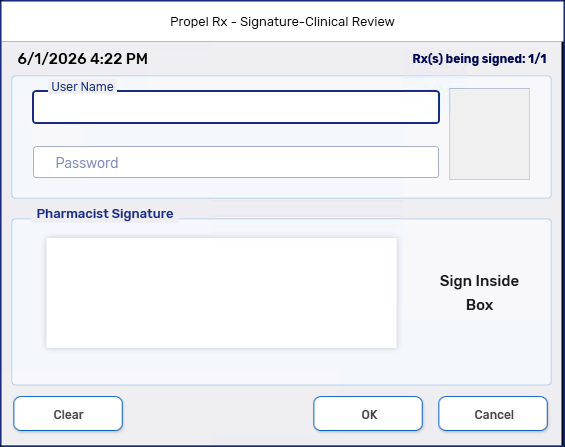
Table 1. Signing methods available by hardware and E-Signature setup.
| Workstation or User Setup | Credential Entry | Fingerprint Scan | Sig Pad Signing | Mouse Signing |
|---|---|---|---|---|
| Signature pad & fingerprint reader | Yes | Yes | Yes | Yes |
| Signature pad, no fingerprint reader | Yes | No | Yes | Yes |
| Fingerprint reader, no signature pad | Yes | Yes | No | Yes |
| No signature pad or fingerprint reader | Yes | No | No | Yes |
| E-signature for logged in user | Yes | Yes | No | No |
Signature Auto-Detection
Once you start to sign using a method, Propel Rx automatically detects what you're using and disables the remaining methods. Auto-detection has been tested with the McKesson supported signature pads: Topaz TS460 and 461.
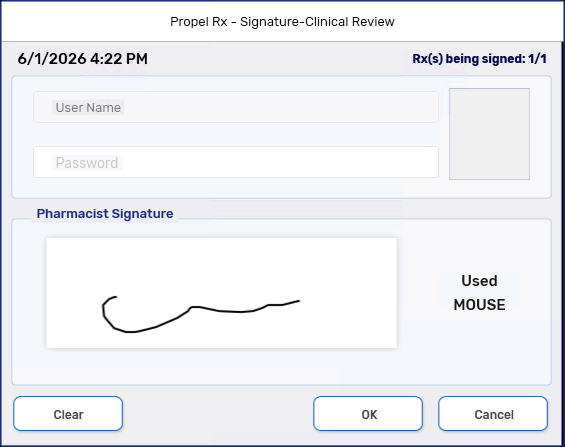
If you're using a signature pad that is not compatible with the auto-detection functionality, the auto-detection preference can be turned off and the bottom portion of the Signature window will have two radio buttons for you to choose either a signature pad or mouse. Once a manual signature is entered, the radio button selection is saved for the next prescription, regardless of which instance or workstation it's signed off on. If user credentials or a fingerprint is used to sign for a prescription, the mouse option will default for the next prescription.